How to Put Your HappyParent Calendar on Your Skylight
August 22, 2026 · 4 min read · The HappyParent HQ Team
A Skylight on the kitchen wall is a lovely thing — the whole family's week, right there at breakfast. The catch is that someone still has to type every event into it: each permission-slip deadline, practice time, and picture day, copied over by hand from a dozen school and sports emails.
HappyParent HQ does that part for you. It reads those emails, pulls out the dates, and keeps one family calendar up to date automatically. And because your Skylight already syncs from Google and Apple calendars, you can pipe HappyParent straight onto the frame — so it fills itself.
Here's how, in about five minutes.
What you'll need
- A HappyParent HQ account (a free trial is fine).
- Your Skylight, already set up.
- A Google account or an Apple (iCloud) account — Skylight syncs from these, and it's how HappyParent's calendar will reach the frame.
You'll add HappyParent to one of those calendars, then point Skylight at it. Use whichever you already have.
Step 1: Copy your HappyParent calendar link
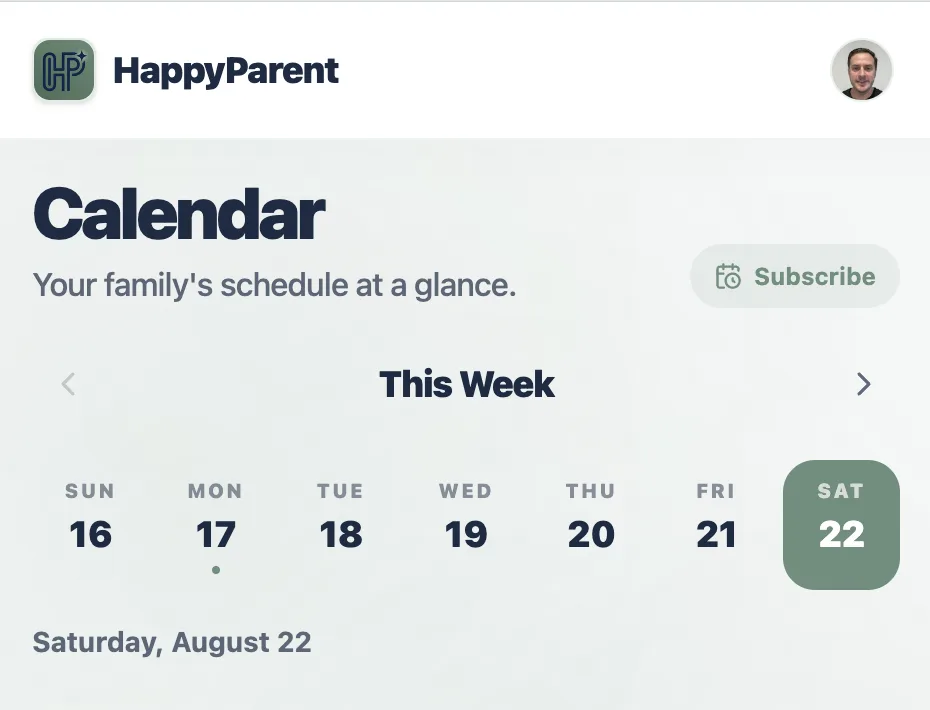
In HappyParent HQ, open the Calendar page and choose Subscribe to Calendar. You'll see a secure, read-only feed link (ending in .ics) with a copy button. Copy it. That link is your family's live schedule, and it stays current automatically as new events come in.
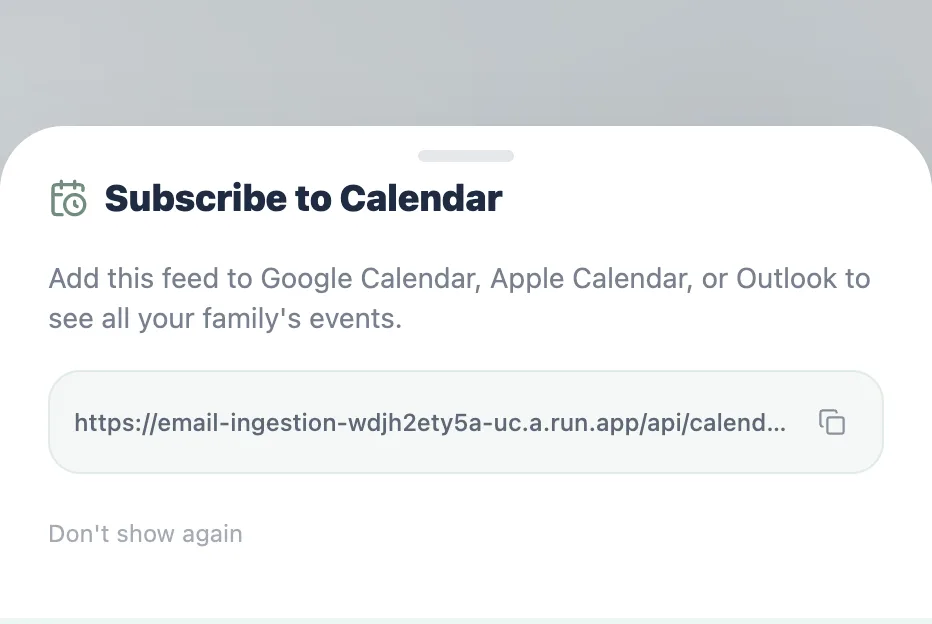
.ics feed link from the Subscribe to Calendar panel.Step 2: Add the link to Google or Apple Calendar
Option A — Google Calendar
- On a computer, open Google Calendar.
- In the left sidebar, next to Other calendars, click + and choose From URL.
- Paste your HappyParent link and click Add calendar.
- It shows up under "Other calendars" and syncs automatically from then on.
Option B — Apple Calendar (iCloud)
- On a Mac, open the Calendar app and choose File → New Calendar Subscription (or add it at iCloud.com → Calendar).
- Paste your HappyParent link.
- When asked where to store it, choose iCloud (not "On My Mac"), so it syncs to every device — and to your Skylight.
A note on subscribed calendars: they can take a few minutes to first appear on your frame. Make sure the calendar lands in your iCloud or Google account (not just on one local device) so Skylight can see it. If a Google-subscribed calendar is slow to appear, the iCloud route is usually the fastest.
Step 3: Turn it on in Skylight
In the Skylight app (or your Skylight account online), open your calendar settings and connect the same Google or Apple account you used above. Then enable the HappyParent calendar in the list of calendars to display.
That's it. From now on, every school, sports, and activity event HappyParent extracts flows onto your Skylight automatically — no more retyping.
What overlaps with your Skylight subscription
Once it's connected, your frame shows a calendar that keeps itself current. It's worth knowing that a few of the things families pay for in a Skylight Plus subscription, HappyParent already includes:
- A shared family calendar everyone can see — up to 5 members, for co-parents, grandparents, or a sitter.
- Assignable tasks. HappyParent's family board lets you assign to-dos to specific people, much like Skylight's chore charts.
- A family display on any screen. HappyParent has a display mode that turns a spare tablet or an old iPad into a wall calendar — no dedicated frame required.
To be straight about it: HappyParent isn't a feature-for-feature Skylight clone — there's no meal planner or rewards chart. What it adds is the piece Skylight doesn't do at all — reading your inbox so the calendar fills itself.
One screen, or none
If you love your Skylight, this simply makes it smarter: keep the frame and let HappyParent feed it.
And if your annual renewal is coming up, it's worth knowing you don't strictly need the frame to get the wall-calendar experience — HappyParent's display mode runs on a tablet you already own, and the shared calendar and task board come along with it. Plenty of families keep both; some find one is enough. Either way, you're no longer entering the family schedule by hand.
Want the full side-by-side on cost and features? See Is the Skylight Calendar worth it?